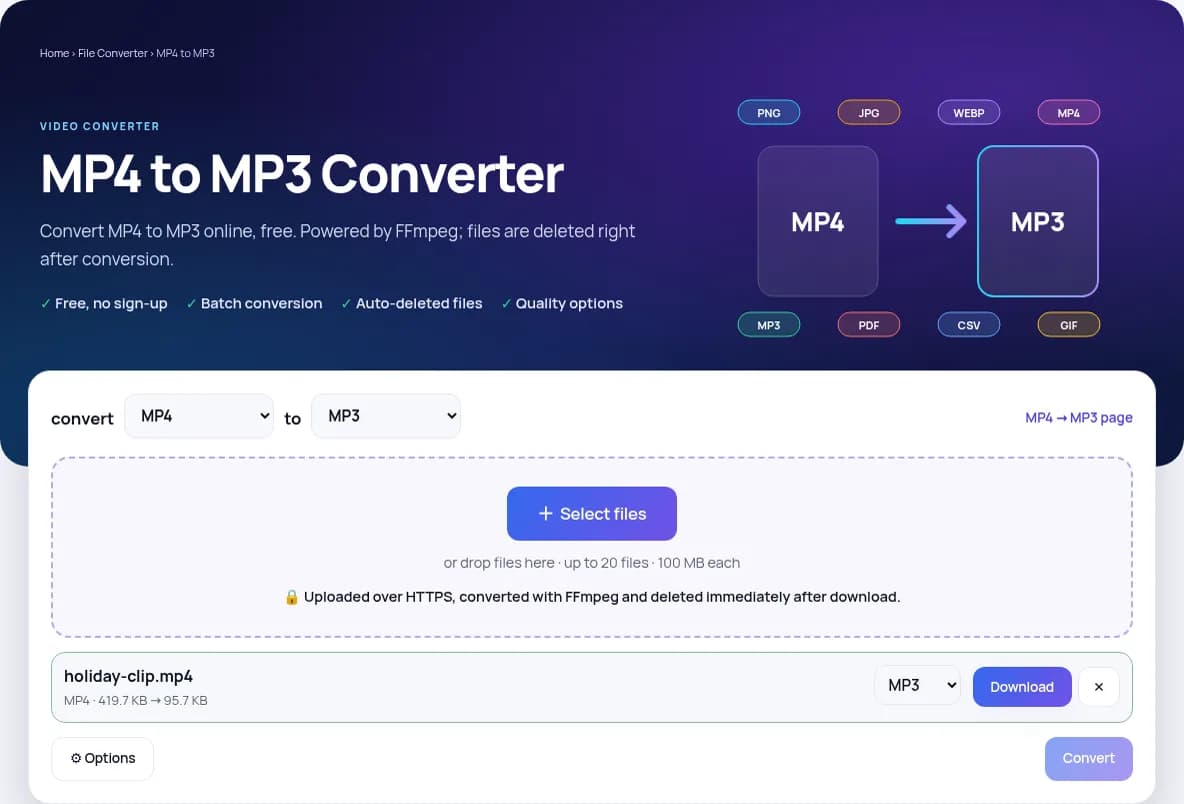
How to convert MP4 to MP3
Video files are converted with FFmpeg on Cloude Tools servers. Each file is processed in a temporary folder and deleted straight after the download.
- Open the MP4 to MP3 converter.
- Add your video files (up to 100 MB each).
- Choose a quality in Options, press Convert and download the MP3.
Which bitrate should you choose?
| Quality setting | MP3 bitrate | Best for |
|---|---|---|
| High | 320 kbps | Music you will keep |
| Balanced | 192 kbps | Most music and podcasts |
| Small | 128 kbps | Speech, lectures and voice notes |
When MP3 is not the best format
- Editing in a DAW or video editor: choose WAV, which is uncompressed.
- Archiving music without loss: choose FLAC.
- Apple devices and podcasts: M4A (AAC) is smaller at the same quality.
- Voice chats and web apps: Opus is the most efficient.
Other videos work too
The same converter accepts MOV from iPhones, MKV, WebM, AVI, WMV and FLV. If a video has no audio track, the converter tells you instead of producing a silent file.
Frequently asked questions
Is it legal to convert a video to MP3?
Converting your own videos, or videos you have permission to use, is fine. Respect copyright for content you do not own.
Will the MP3 keep the title and artist?
Yes, metadata tags are copied where the source video has them.
Key takeaways
- Use Balanced (192 kbps) for most audio.
- Choose WAV for editing and FLAC for lossless archives.
- Files are deleted right after conversion.
Published 18 November 2026 by the Cloude Tools team.