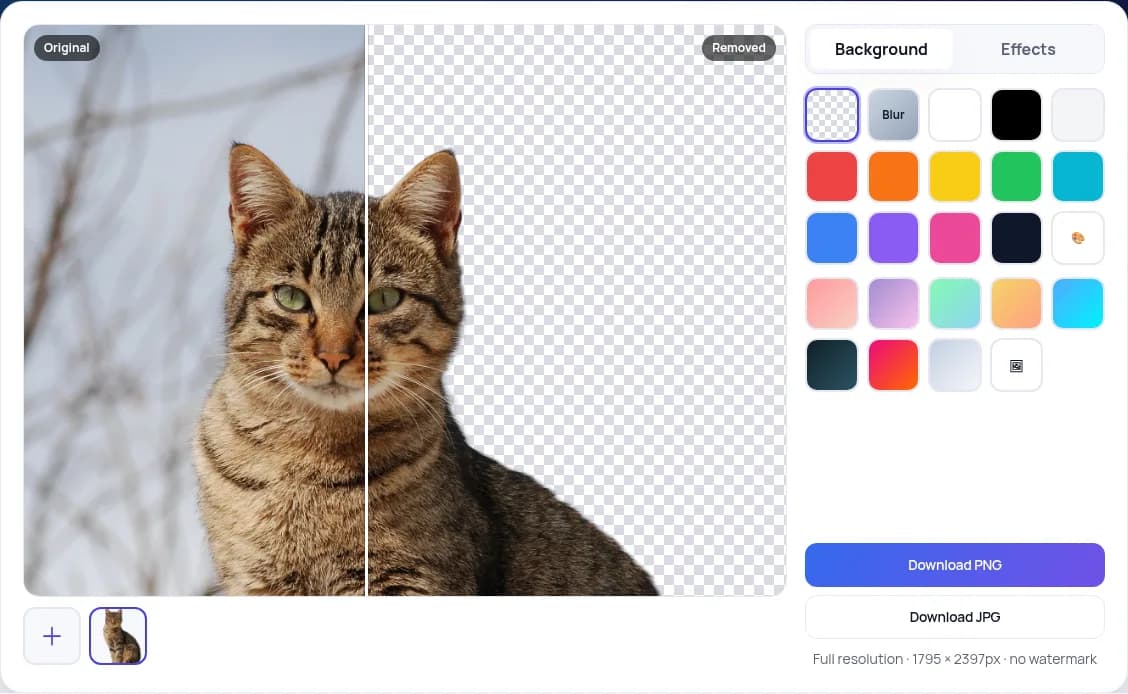
Step 1: Upload a clear photo
Open the Cloude Tools Background Remover and upload a JPG, PNG or WebP up to 15 MB. You can also paste an image straight from the clipboard with Ctrl + V.
The model works best when there is one obvious subject: a person, a product, a pet, a car or a logo. Good light and a little contrast between subject and background help more than resolution.
Step 2: Let the AI cut it out
The image is processed by IS-Net, an open segmentation model trained to separate foreground from background. It produces a soft alpha mask, so hair and fur fade naturally instead of ending in a hard jagged line.
The result keeps your original pixel size. A 4000-pixel photo comes back as a 4000-pixel transparent PNG, not a small preview.
Step 3: Choose a new background
Keep it transparent for logos, stickers and design work. For marketplaces, choose white. For social posts, try a gradient or a blurred copy of the original photo, which looks like a portrait-mode shot.
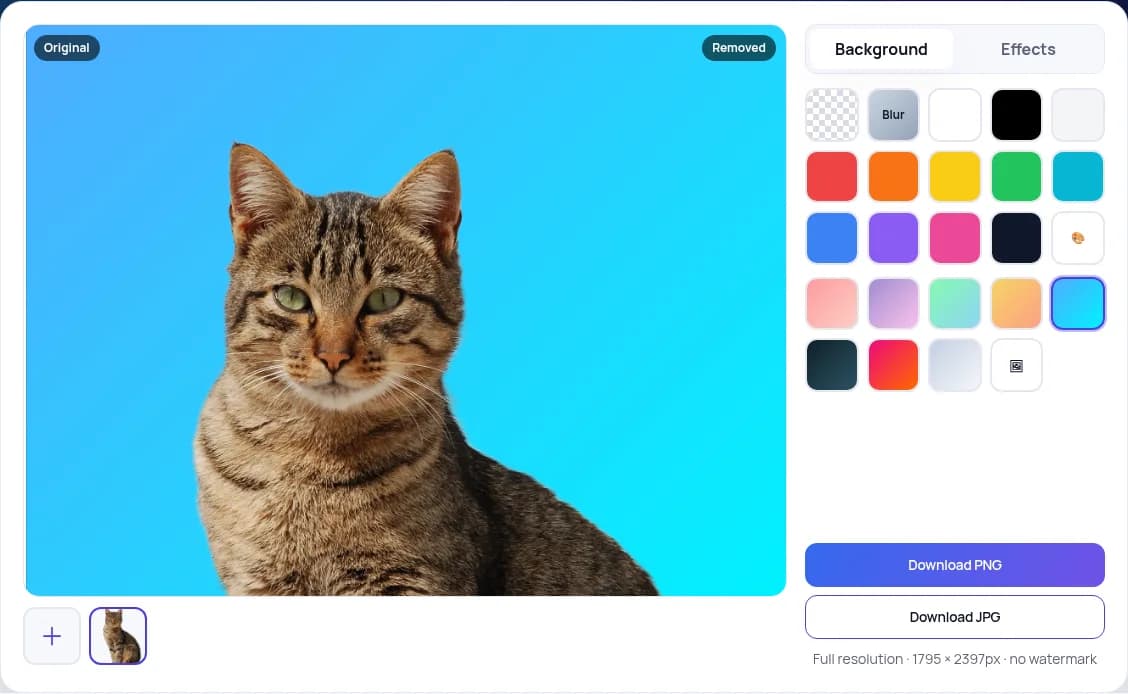
PNG or JPG: which should you download?
| You need | Download | Why |
|---|---|---|
| Transparent background | PNG | JPG cannot store transparency |
| White or coloured background | JPG | Several times smaller than PNG |
| Website use | PNG, then convert to WebP | WebP keeps transparency at a smaller size |
Fixing imperfect edges
- Shoot against a plain wall when you can; busy backgrounds confuse any model.
- Avoid backgrounds the same colour as the subject, such as a white shirt on a white wall.
- Glass, smoke and very fine hair are hard for every remover. Check them at 100% zoom.
- Turn on the drop shadow for products so they do not look pasted on.
Frequently asked questions
Is the background remover really free?
Yes. Cloude Tools gives you full-resolution downloads with no watermark and no account.
Does it work for product photos?
Yes. Upload the product, pick a white background and add a soft shadow for a marketplace-ready image.
Are my photos stored?
No. The image is processed in a temporary folder and deleted as soon as the cut-out is returned.
Key takeaways
- One clear subject and good contrast give the cleanest cut-out.
- Download PNG for transparency and JPG for solid backgrounds.
- Add a soft shadow for products.
- Convert big PNGs to WebP before putting them on a website.
Published 18 November 2026 by the Cloude Tools team.