Why you keep getting WebP files
When you save an image from a modern website, you get the format the site served. Most large sites now serve WebP to browsers that support it, so “Save image as” produces a .webp file even if the original upload was a JPG.
Convert WebP to JPG in three steps
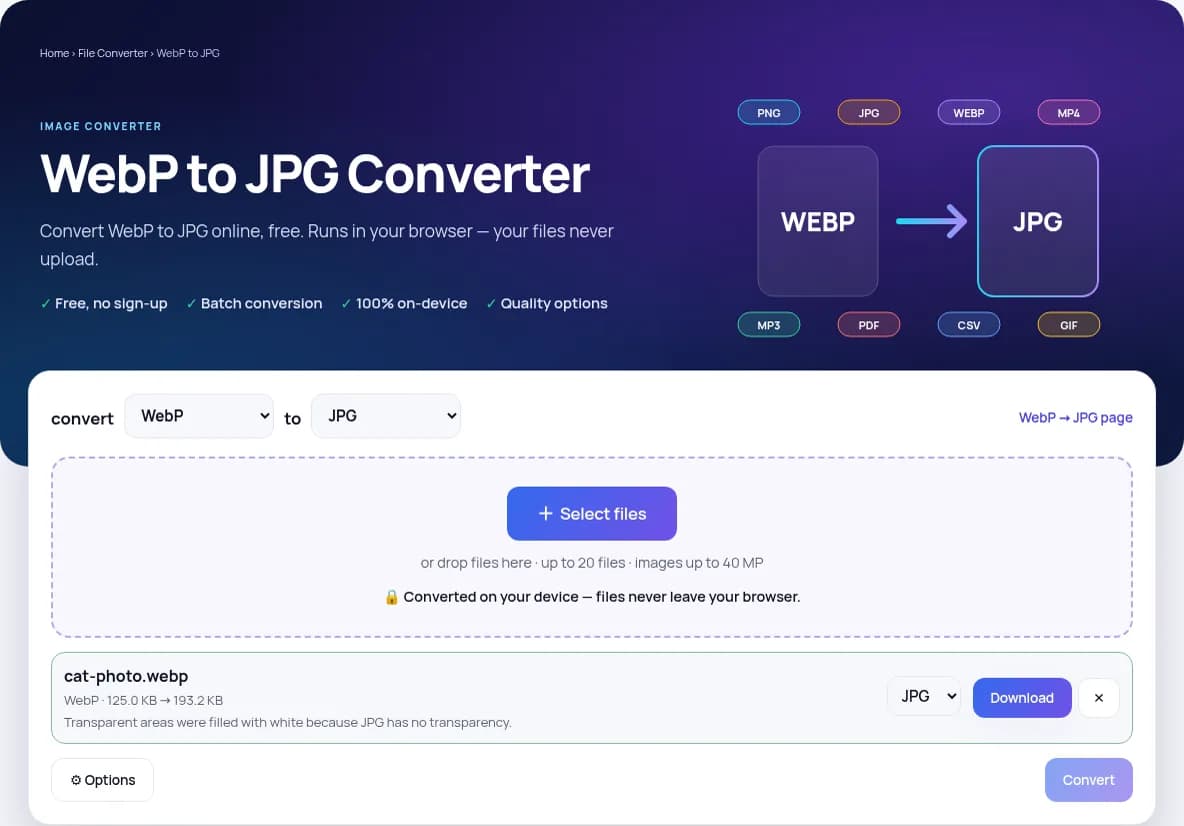
The conversion runs on your device with the browser’s own image decoder. Nothing is uploaded, which also makes it fast.
- Open the WebP to JPG converter. Both formats are already selected.
- Select or drop up to 20 WebP files.
- Press Convert, then download each JPG or all of them as a ZIP.
JPG or PNG?
| Your WebP contains | Convert to | Reason |
|---|---|---|
| A photo | JPG | Small file, opens everywhere |
| A logo, icon or screenshot | PNG | Sharp edges and text stay crisp |
| Transparency | PNG | JPG fills transparent areas with a background colour |
Keep quality high
Choose High quality in Options when the image will be edited or printed. If transparent areas would turn white in JPG, pick another fill colour in Options or convert to PNG instead.
Frequently asked questions
Can I convert WebP to JPG without software?
Yes. The Cloude Tools converter works in any modern browser on Windows, Mac, Android and iPhone.
Does converting WebP to JPG lose quality?
JPG is lossy, but at High quality the difference is not visible. Convert to PNG if you need an exact copy.
Can I convert many WebP files at once?
Yes, up to 20 files per batch, downloadable as one ZIP.
Key takeaways
- Websites serve WebP for speed, so saved images are often WebP.
- Convert photos to JPG and graphics or transparent images to PNG.
- Browser conversion is private and fast.
Published 18 November 2026 by the Cloude Tools team.